Removing a Listing
There are multiple ways of removing your active CannaMLS listings, depending on what exactly you are trying to accomplish. All methods for removing your listings explained in this article will result in you no longer being charged for the affected listings. You can unpublish or delete published listings, which will result in the affected listings being taken offline, or you can mark published listings as sold, in which case they will still be listed in the CannaMLS Listing Catalog under the "sold" category.
You must be logged in to your CannaMLS account in order to remove, delete, unpublish or make any changes yo your listings.
The Listing Page
When looking at one of your own listings on CannaMLS, the listing page will look slightly different than when looking at another user's listings. The most obvious difference is the edit bar, at the top of the page:

Methods for Removing a Listing
As mentioned earlier, there are multiple methods for removing a listing: unpublishing, also known as reverting to draft status, deleting, marking as Sold, and deactivating your account.
Marking as Sold
In case you have sold the property or license the listing refers to, you should mark the listing as sold. You will not be charged for any listings you have marked as sold. Marking as sold will keep the listing page publicly visible and searchable in the CannaMLS Listing Catalog (although users have to explicitly search for sold listings to see them in searches). Marking as sold also has the advantage that any links that you or anyone else may have pointing to the listing page will still be accessible without having to log in to your CannaMLS account.
You can mark listings as sold from the edit bar or from the listing edit page.
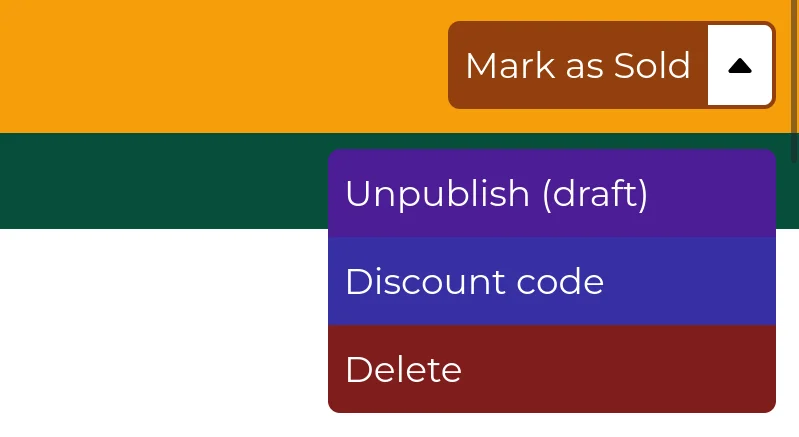
If your listing is published and available, a "Mark as Sold" button will appear in the top-right of the edit bar. Click on this button to mark the listing as sold. Note that, when marking a listing as sold, a dialog box may appear and you may have to answer a few questions. Only after submitting your answers will the listing be marked as sold.
Marking as Sold, Option 2
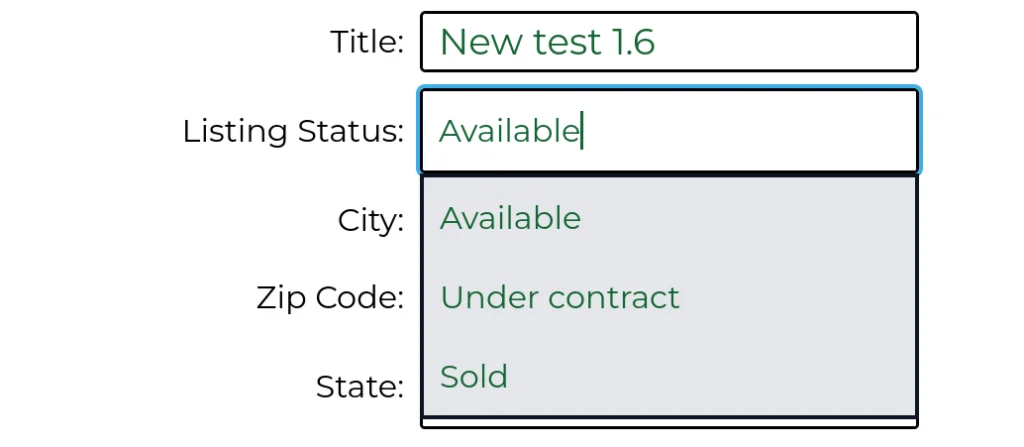
Alternatively, if your listing is published, but it is not available (this could happen if you have previously set the listing's status to "Under Contract", for example), the "Mark as Sold" button may not appear in the top-right menu. In this case, you should edit the listing and manually set the availability status to "Sold"
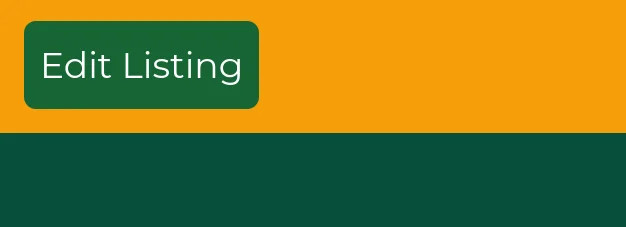
First, enter Edit Mode by clicking on the "Edit Listing" button.
Then set the Listing Status to "Sold".
And finally, save the listing by clicking on the 'Update" button in the top-right.

Deleting and Unpublishing
You can delete or unpublish your listings from the top-right menu in the edit bar. You will not be charged for any drafted or deleted listings.
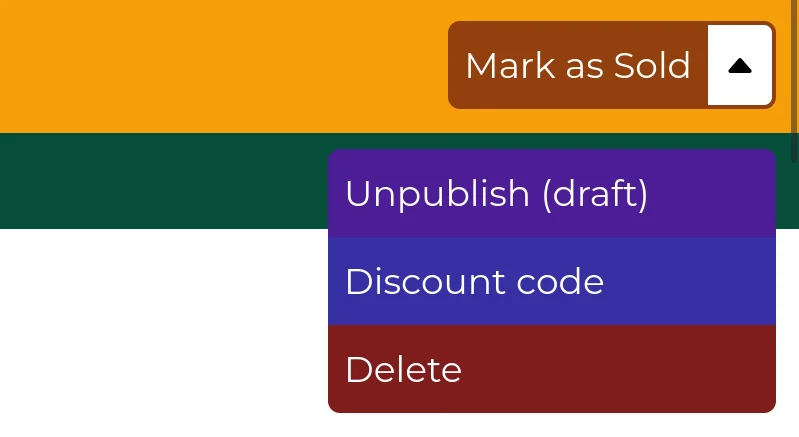
To delete or unpublish your listing, click on the relevant option in the menu. The difference between unpublishing and deleting is mostly symbolic. You can use "Unpublish (draft)" for cases in which you expect to re-publish the listing at a later date. You can use "Delete" when you do not expect to re-publish the listing. You can revert both drafted and deleted listings back to published status if you wish.
Deactivating your Account
If you no longer wish to use your CannaMLS account, you can deactivate it. This will automatically unpublish any listings you may have associated with your account.
IMPORTANT WARNING!!!
Deactivation will make it impossible to log back in to your CannaMLS account without assistance from a CannaMLS administrator!
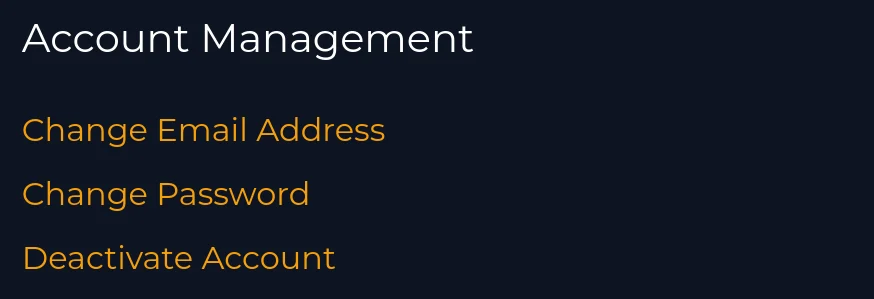
To deactivate your account, go to your account settings page, then click on "Deactivate Account" at the bottom of the page, in the "Account Management" section. Once you confirm deactivation, all of your listings will be unpublished and you will be unable to log back in to your CannaMLS account without assistance from a CannaMLS administrator.