Saving Listing Searches
Whenever you search for listings on CannaMLS, you have the option to save the search filters used for quick access at a later date. You can also opt in to receiving email notifications whenever a new listing matching your saved search gets added to CannaMLS.
Creating and managing Saved Searches requires a CannaMLS account. Please make sure you are logged in before continuing. If you do not have an account, please sign up.
Creating a Saved Search
You can save any kind of listing search, including ones that do not have any active listings, as long as you have selected at least one search filter.
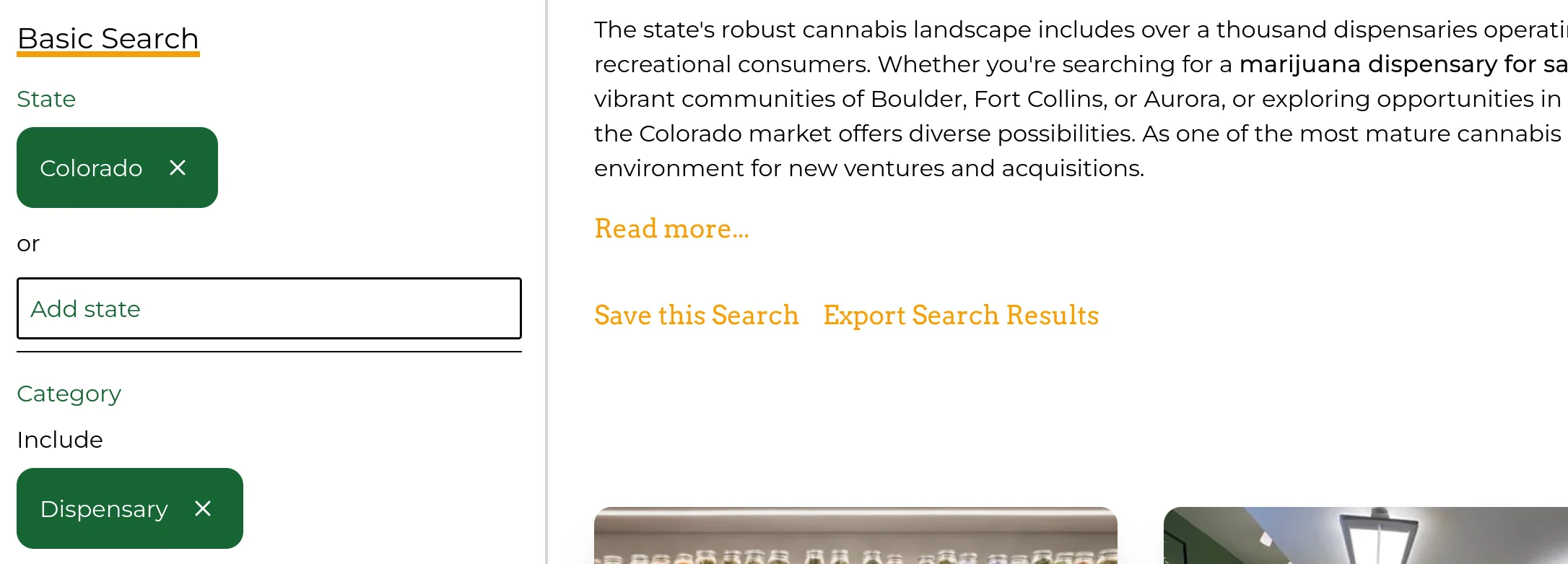
When performing searches with at least one active filter, a "Save this Search" button should appear before the listing grid. Click on the button to bring up the Saved Search dialog:
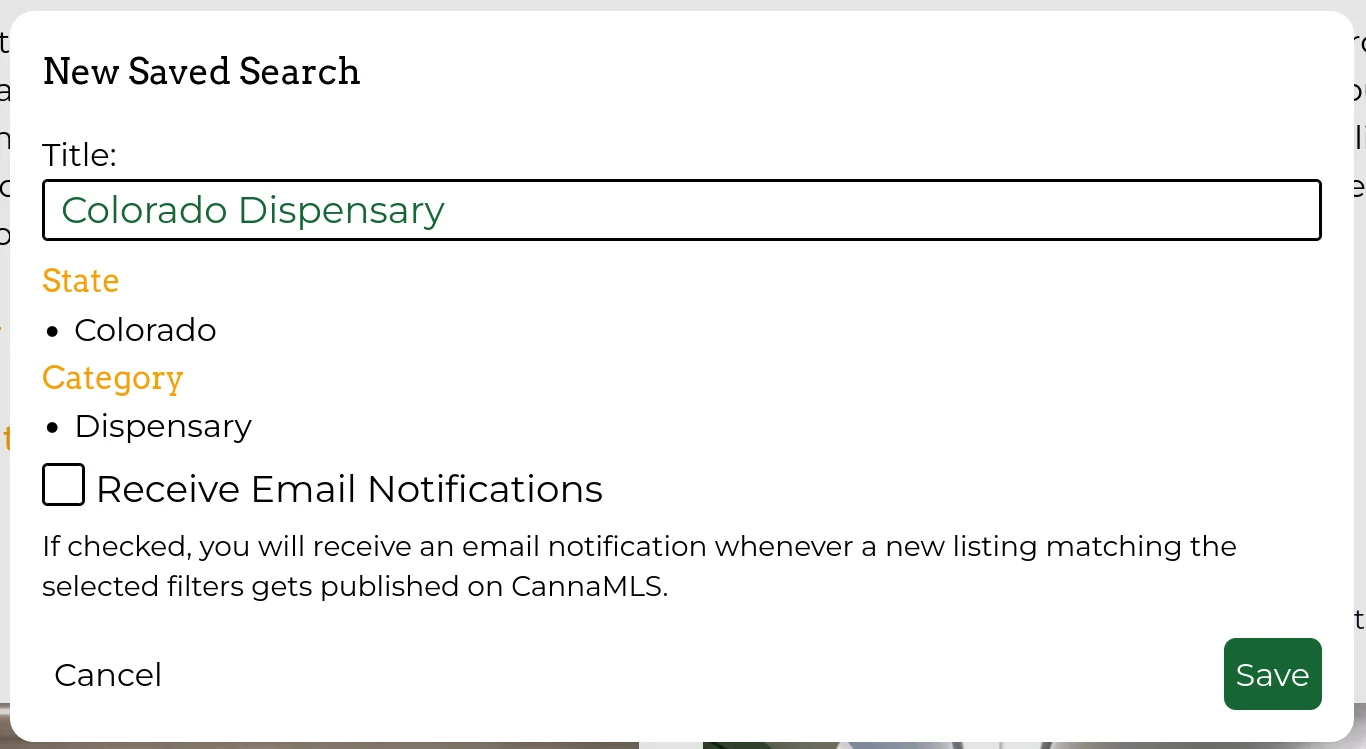
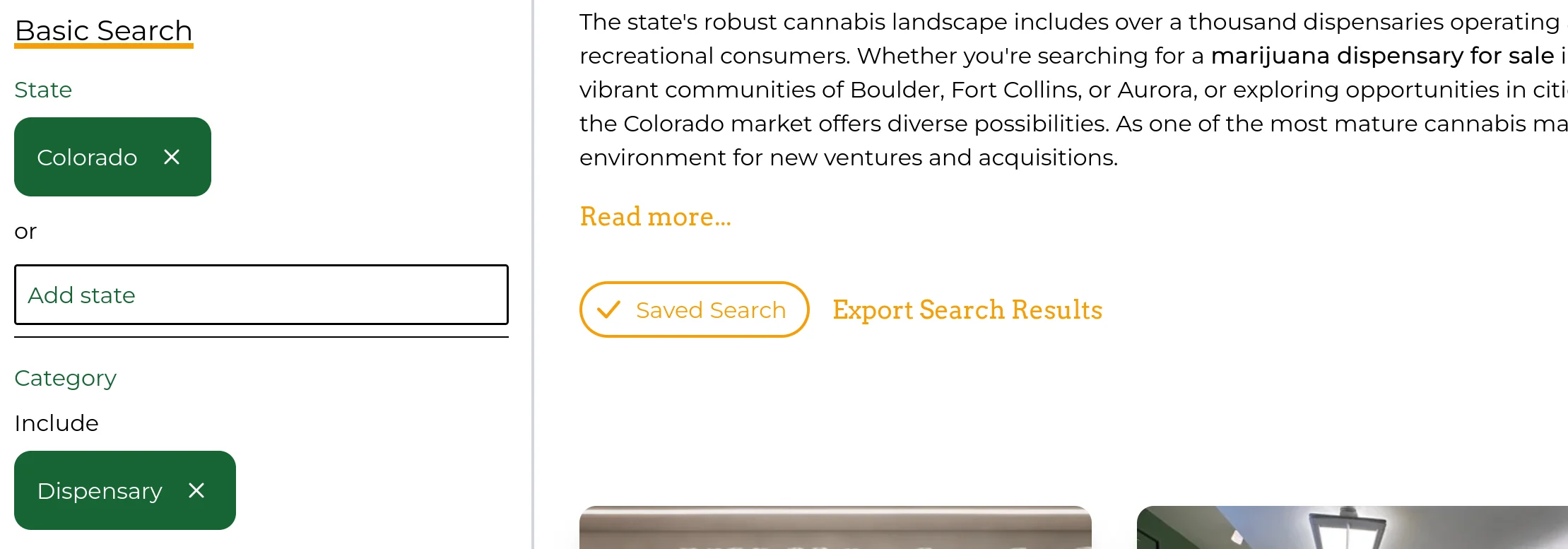
The Saved Search will be automatically assigned a name - you can change it if you wish. You can also opt in to receiving email notifications for your Saved Search. Once saved, whenever you perform a search with the same search filters, you should notice a "Saved Search" indicator above the search results:
Editing or Deleting Saved Searches
You can edit or delete Saved Searches associated with your CannaMLS account from the "Saved Searches" tab in the Listings section of your Profile Page. You can also use the following link: https://cannamls.com/profile/listings/saved_searches
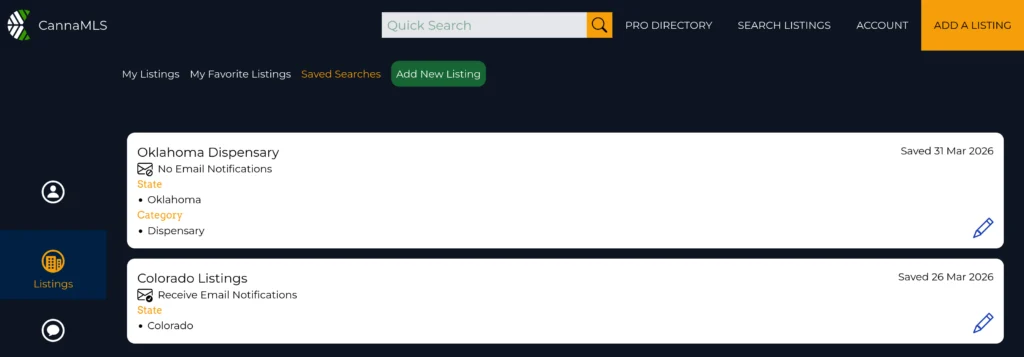
On this page, you should be able to view and manage all of your Saved Searches. Click on any Saved Search to go to the Listing Catalog and apply the filters associated with that Saved Search.
To edit or delete a Saved Search, click on the pencil icon in the bottom-right of the Saved Search card. A dialog box similar to the one that appeared when first saving the search parameters should show up:
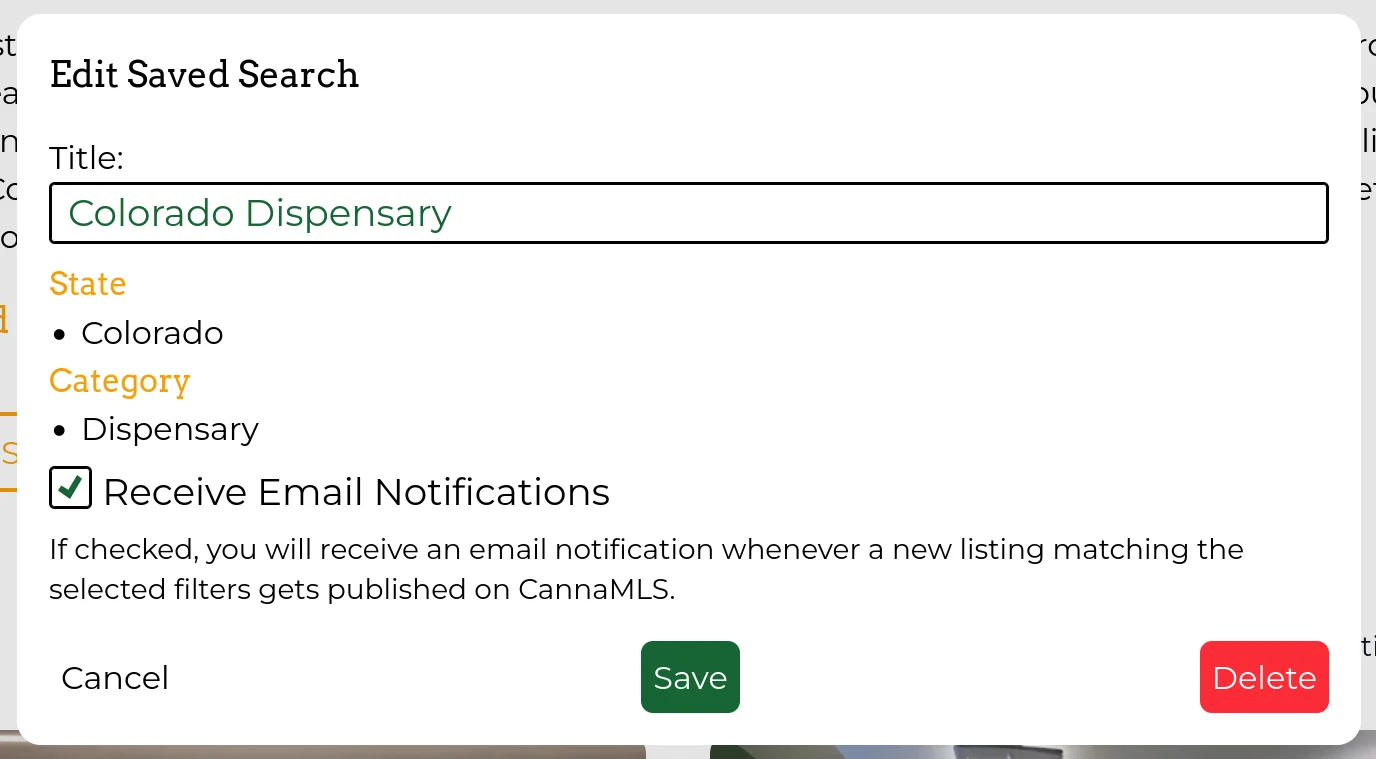
You can use this dialog box to change the title of your Saved Search, enable or disable email notifications, or delete the Saved Search.